
Teach it once, conduct forever
No cameras, no hubs to buy, no room mapping ritual. You teach Maestro where things are the natural way, by pointing at them.
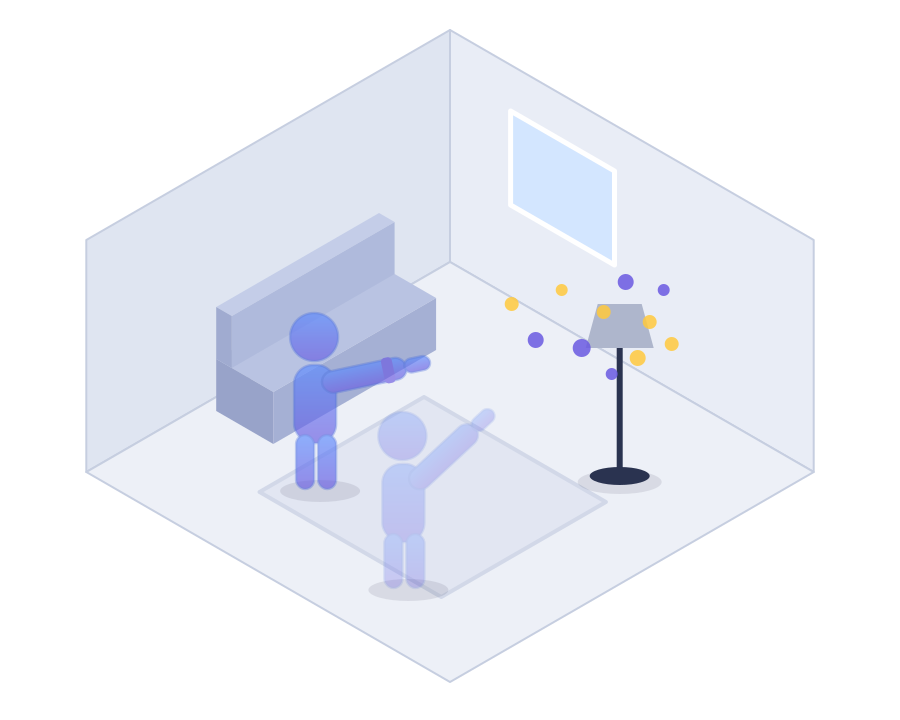
Paint your devices
Sweep your arm at each device for ~15 seconds, like spray-painting it. Your wrist pulses while it learns. That's the whole setup.
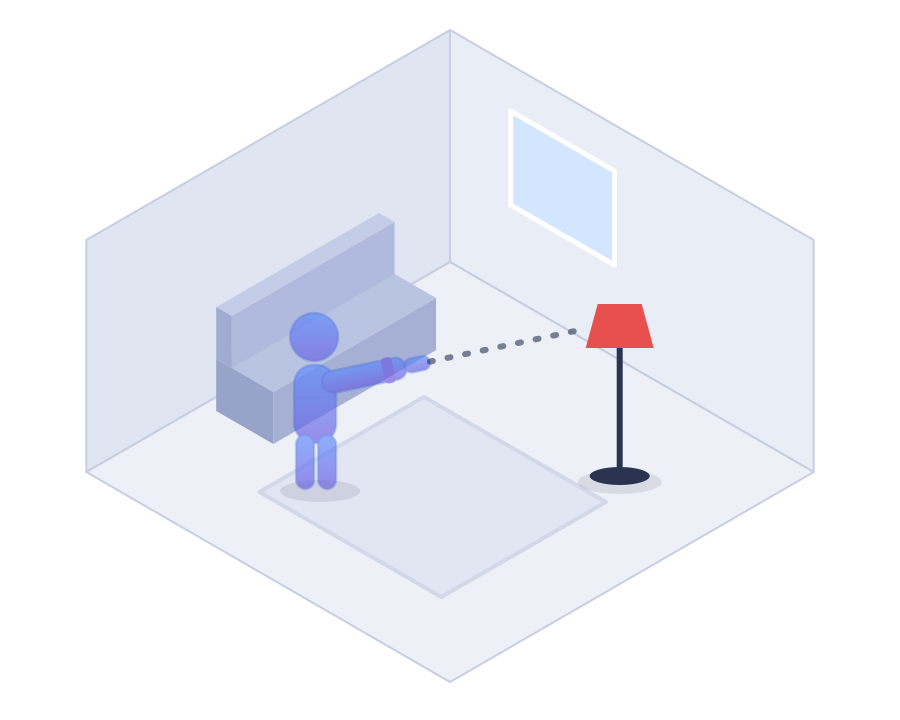
Point
Arm out, finger at the device, like showing it to a friend. The watch knows what you mean.
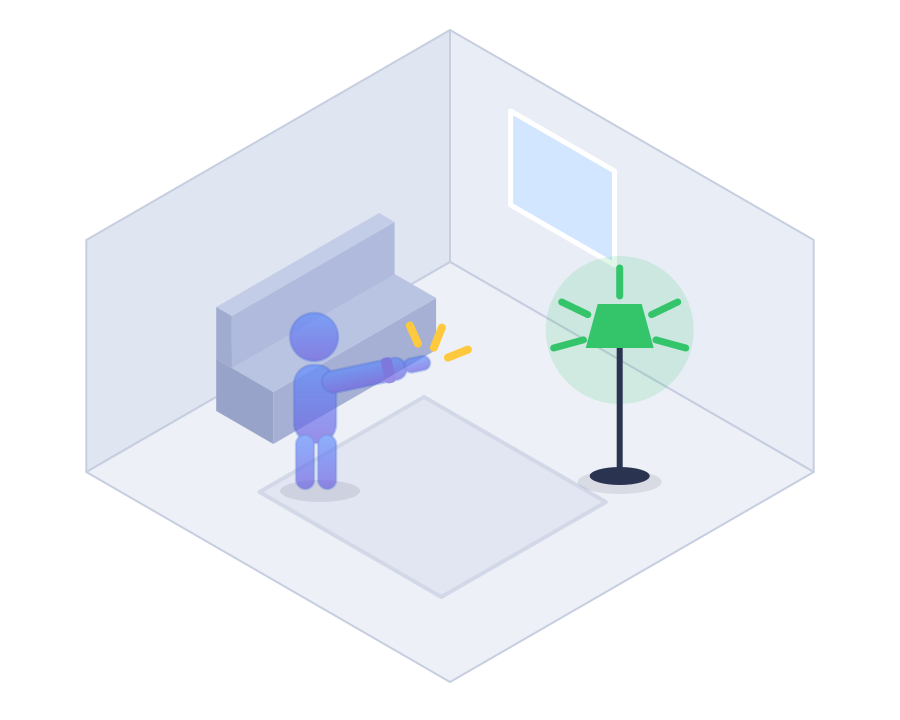
Snap
Snap your fingers (or switch the trigger to Tap). Haptic confirmation on your wrist, light goes on.
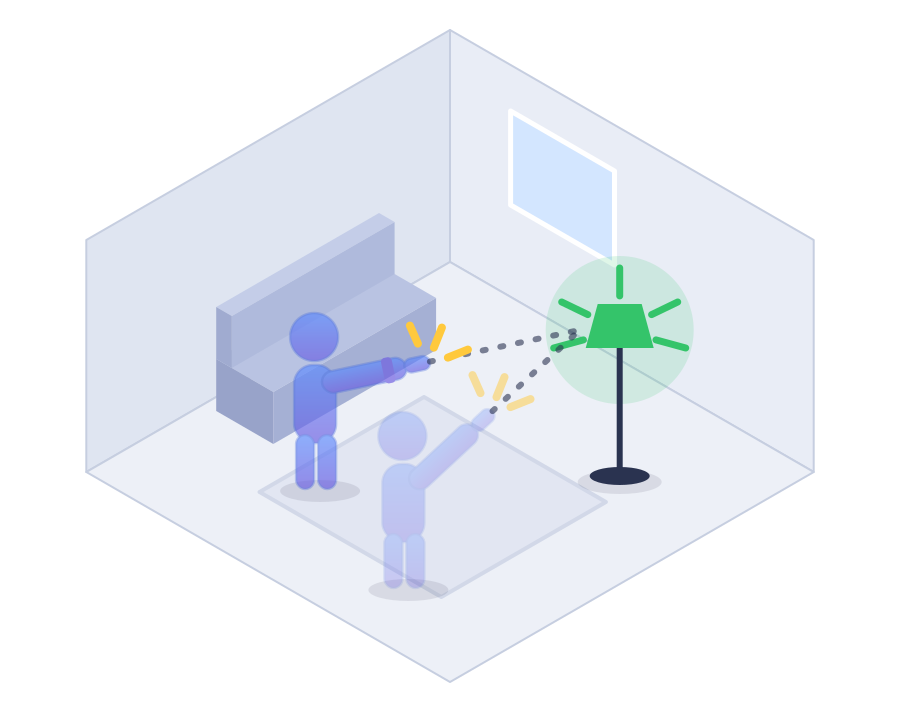
From anywhere
Walk to another room and Maestro follows. A little tap on your wrist says it noticed.
Works with Apple Home
One permission prompt and every HomeKit accessory and scene is a target. Scenes can run any Shortcut: point at the door, snap, "Goodnight."
Works with Home Assistant
Sign in to your own server and Maestro talks directly to it. Nothing to install on the HA side.
It learns from you
Wrong room? Pick the right one and it remembers. Wrong device? A little "or the reading light?" button appears; one tap corrects it and teaches it. Day 30 beats day 1.
Locks, done right
Smart locks never fire from a gesture alone. A snap arms the action; a deliberate tap on the watch confirms it. Your lamp can afford a mistake. Your front door can't.
Dress it up
Five color schemes repaint the whole watch app, and a snap can land as emphasis marks, a thrown blob of ink, a shockwave, confetti, stardust or glitter. Part of Unlimited: the magic is free, the wardrobe is paid.
Private by design
No cloud, no account, no data collection. Every command goes straight from your wrist to your home. Your Exercise rings stay yours, too.
The beta, in their words
Live from the launch thread on r/homeassistant. Lightly curated, entirely real.
"We're one step closer to a magic wand."u/tcumby
"I laughed so hard when I switched on/off my first device, so much joy, I felt like a kid again. This is absolutely brilliant!!!"u/Pidpaed
"Mighty wizard! thy wondrous sorcery doth leave me utterly spellbound!"u/Vicingtosh
"This is black magic levels of clever, thank you again for sharing!"u/Chairboy
"I fully intend to use this around friends and completely refuse to acknowledge or explain what is going on."u/woffls
"Sorcery. Burn him at the stake! (Awesome. Absolutely delicious)"u/Pijuli
"It's efficient, it's local and on-device, and it's old vs new tech."u/rmbarrett
Questions people actually ask
Asked by real testers, answered by the guy who snaps at his own house every evening.
Getting started
Which Apple Watch do I need?
Series 5 or newer, SE and Ultra included. Maestro points by compass, and the Series 4 doesn't have one. It's a lovely watch that has no idea which way it's facing.
Where's my Apple TV (or HomePod)?
Hidden by Apple, not by Maestro. Apple doesn't expose its own devices (Apple TV, HomePod) to any third-party HomeKit app, so on the Apple Home backend they can't be painted. HomeKit TVs from LG, Samsung, Sony and Vizio show up fine and snap happily. And if your home runs Home Assistant, its media players (Apple TV included) come through that door instead.
I can't snap my fingers. Am I locked out?
Not at all. The snap is just the default trigger. On the watch, scroll to the settings page, find Trigger, and pick Tap: a firm tap of your fingers together counts exactly like a snap. Same aim, same magic, quieter. Tap also works from either wrist, which makes it the answer if you wear the watch on the hand you snap with, and frankly it's the more polite trigger in a meeting.
The watch app won't install. The spinner just spins.
That spinner belongs to watchOS, not Maestro; every watch app falls into it sometimes. The ladder, in order: open the Watch app on your iPhone, scroll down to Available Apps, and install Maestro from there. Still spinning? Restart both the watch and the iPhone (really; the install queue spans both, and a reboot clears it). Check the watch isn't out of storage. Last resort: delete Maestro from the iPhone, reinstall it, and let the watch copy come down fresh.
Do I have to open the app every time?
Maestro listens while it's front and center on your wrist. (watchOS doesn't let apps watch your arm from the background all day, which is fair; that's your battery they'd be watching it with.) So the game is getting it up fast, and there's a whole ladder of ways.
The one-tap tier: add the Maestro complication to your watch face (the little hand with the sparks), or drop the widget in your Smart Stack. The button tier: grab the ready-made Open Maestro shortcut. One tap adds it; then hang it wherever you like: the Action button on an Ultra, or Control Center on any watch.
The wizard tier, discovered by a beta tester: point a hand gesture at the shortcut we provide. Watch Settings → Accessibility → AssistiveTouch → Hand Gestures, assign Double Clench to the Open Maestro shortcut, and set Activation Gesture to None so AssistiveTouch itself doesn't grab the clench first. Now the whole move is: double clench, then snap. No buttons, no taps, no witnesses who can explain what just happened.
The same gesture knows a second trick: pausing. In the iPhone's Shortcuts app, make a shortcut with Maestro's "Toggle scanning" action. The list shows two Maestro entries; pick the WATCH app's one, even if it looks like a placeholder (that's the right one, and it runs instantly on your wrist). Point Double Clench at that shortcut instead and Maestro pauses with a three-tone chord; clench again and it resumes, chord reversed. Applaud, stir pots, talk with your hands. Your lamps will wait.
And however you launch it: Settings → General → Return to Clock → Maestro → a longer custom time, and it stays up all movie night.
Will it eat my battery?
Maestro naps unless your arm is up. Room detection is a six-second Bluetooth sniff now and then (never a continuous scan), and the motion math runs only while the app is on your wrist doing its job. Your watch will still outlive your evening.
Painting & aiming
How do I paint a device well?
Stand where you normally are when you want that device: paint the reading lamp from the couch, not from a tour of the room. Sweep your arm lazily across it for the few seconds, pointing a little past it on each side, like spray painting a dinner plate around it. Use it from two spots? Paint it again from the second one; paints stack. After that the everyday corrections (a room pick here, an "or the reading light?" tap there) keep sharpening it. Day one is good. Day seven is scary good.
What do the hand colors mean?
The hand on the control screen is a status light. Gray on black: resting, nothing under your aim. Orange on black: mid-aim, still deciding. Green on black: it has a device in mind. The whole screen floods your accent color and the hand goes dark: target locked, snap now and that exact device obeys (a twist dims it, if it dims). Flood means fire.
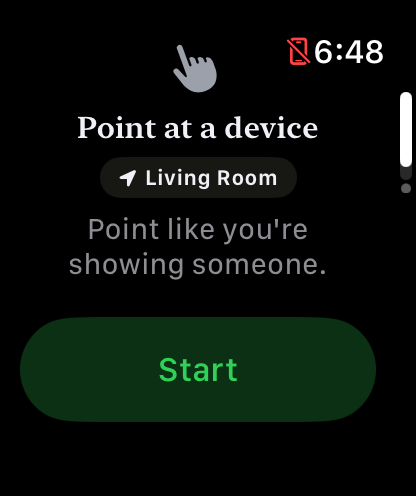
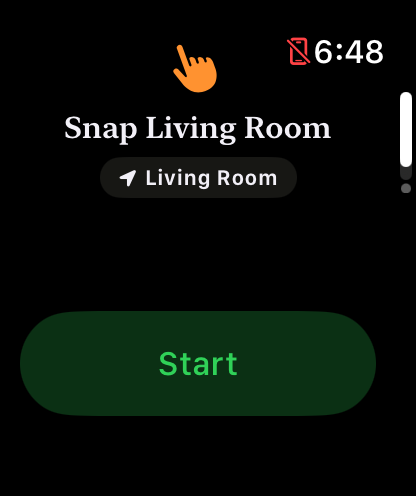
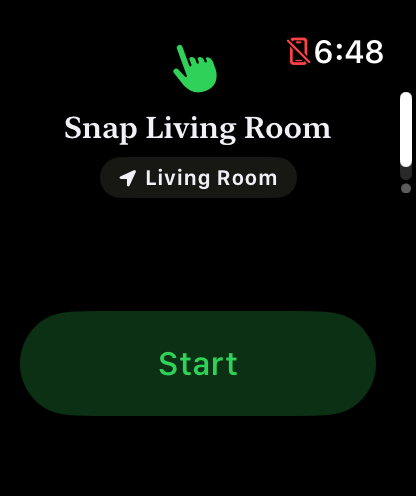
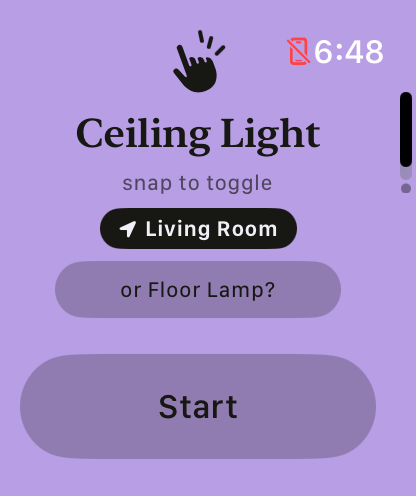
In practice you'll see green-on-black a lot at the beginning, while it's still learning your house. The full-color flood shows up more and more as the watch gets confident about what you're pointing at. Watching the flood take over IS watching it learn.
It toggled the wrong lamp.
Happens on day one, rare by day thirty. Paint the device again from the spot you actually snap at it, and when Maestro offers "…or the reading light?", tap it. Every correction teaches. You're the teacher; the homework is turning on lamps.
My cat jumped on my arm. Did the lights go out?
No. A snap only counts from a calm, aimed, deliberately moved arm. Couch bumps, steering wheels, and enthusiastic pets have all been field-tested against it. (The field was my couch.)
Why can't I add a scene?
You can! Point somewhere memorable (the front door is popular), snap, and "Goodnight" runs. But here's the dirty secret of scenes: five minutes after Goodnight, somebody always needs the one lamp that Goodnight turned off. A scene can't help you there. Pointing at the lamp can.
Do I look silly pointing at my house?
You look like someone whose lights obey a snap of the fingers. History has a word for those people, and it isn't "silly."
Home Assistant
My Home Assistant has 400 entities. Does Maestro have to see all of them?
It does not. In Home Assistant, make a label called
maestro and put it on the entities (or whole
devices) you actually want on your wrist. The
moment anything wears the label, Maestro shows only the labeled
things. Your HA stays the single source of truth; there's no
list in Maestro to babysit. No labels anywhere, and you get
everything, same as always.
This is also the move when the family starts getting watches and you'd rather they didn't discover the water heater.
Some of my Home Assistant devices don't show up.
Three usual suspects. First, the domain: Maestro shows lights,
switches, fans, media players, locks, climate, scenes, scripts,
buttons and input_booleans. Second, and sneakiest: the entity has
no Area. Maestro organizes everything by Areas, and area-less
entities are invisible; re-added integrations often come back
without one. Give it an Area and it appears. Third: if anything
wears your maestro label, only labeled things show,
see the question above.
Can it run my automations? Custom actions?
Yes, today, with the oldest trick in the Home Assistant book: wrap whatever you want in a script and paint the script. A snap runs it. Point at the projector wall, snap, movie mode. The same idea bridges odd hardware through input_booleans. If HA can do it, a script can trigger it, and if a script can trigger it, you can snap at it.
Safety & privacy
Could it unlock my front door by accident?
Locks never fire from a gesture alone. The snap arms the action; a deliberate tap on the watch confirms it. Your lamp can afford a mistake. Your deadbolt can't, so it doesn't get to make one.
What if I snap at the office?
Maestro listens for your home's Bluetooth ambiance; away from it, gestures politely decline. The map on your iPhone still works from anywhere, though: turning off the lamp you forgot is a feature, not an accident.
Where does my data go?
Nowhere. No Maestro cloud, no account, no analytics. The pointing model lives on your watch, and commands travel from your wrist to your home. End of trip. The App Store label says "Data Not Collected" because there's nothing to collect it with.
Price & looks
How much will it cost?
Free forever for one device in one room (the full magic, small stage, on either backend), and $8.99, once, unlocks your whole home, webhooks and the wardrobe. I'm turning off lamps here, not financing a yacht (though maybe part-owning a ranch).
Can I change how it looks?
With Unlimited, yes. Five color schemes (Fresh Lime, Clear Sky, Tangerine, Lavender, Bubblegum) repaint the watch app end to end, and eight snap effects decide what happens on screen the moment a device obeys: emphasis marks that settle into the logo's own sparks, a juicy blob of ink, a shockwave, confetti, stardust, glitter. One of the eight is "off", for the purists. There are eight app icons too, picked on the iPhone under Style; your Apple Watch always wears the classic Maestro icon. Free stays on Lavender with three of the effects, which is a complete experience, just a smaller closet.
The big questions
Why not just use Siri?
You can, if your home runs Apple Home. Siri was always there, and Maestro doesn't mind sharing. Home Assistant homes are a different story (take it up with the two of them). But consider: you could say "Hey Siri, turn on the reading light," out loud, in front of guests… or you could point at it and snap. One of these makes you a wizard.
Is it a party trick?
It's a pretty awesome party trick and your guests will think you're a magician. I also find it genuinely useful, which surprised me more than it surprises them.
Is it overengineered?
Depends entirely on what you mean by that. Let's find out together. Pick whichever definition you'd defend in an argument.